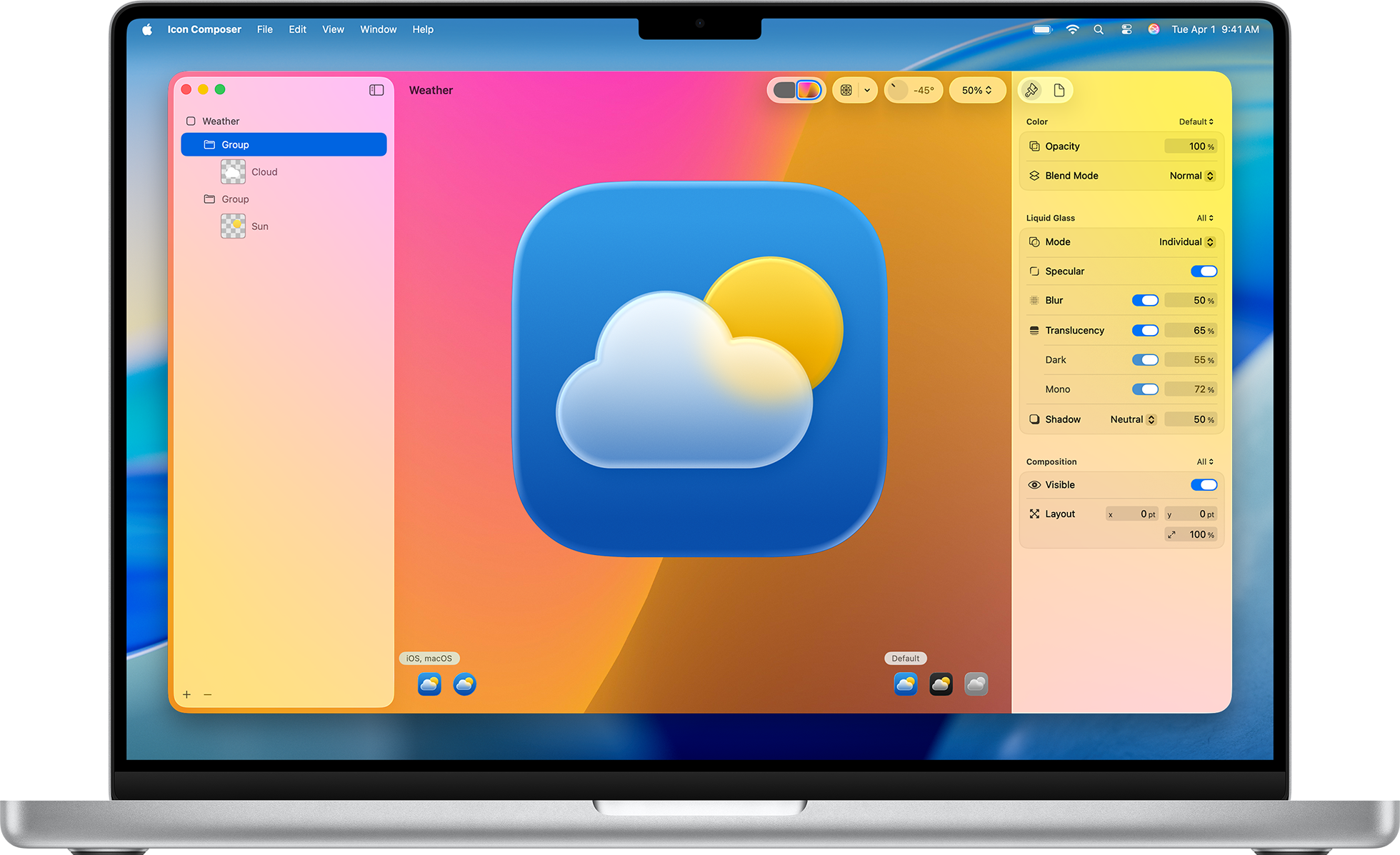
Quick answer
Download the Xcode file from AppIconFast, unzip it if your browser saved it as a zip, then drag the AppIcon.icon file into your Xcode project. Select your app target and make sure the app icon setting points to that icon file.
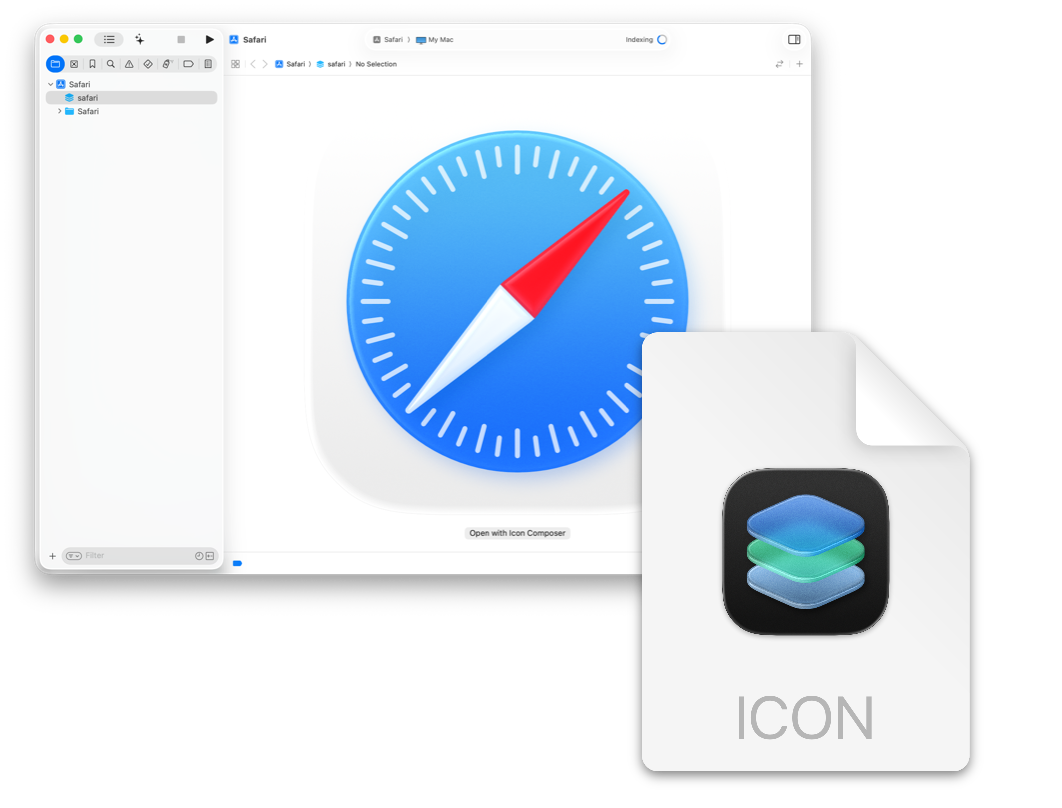
Add the .icon file to Xcode 26
- Click Download for Xcode in AppIconFast.
- Open your Xcode 26 project.
- Drag
AppIcon.iconinto the Project navigator. - When Xcode asks, keep Copy items if needed enabled.
- Select your app target, then open General.
- Find the app icon setting and choose the added
AppIcon.iconfile. - Build and run on iOS, iPadOS, or macOS to confirm the icon appears.
Why .icon is different
A .icon file is not just another PNG size. It is the newer Icon Composer format that lets Xcode render the app icon across Apple platforms and appearances from one source file.

What to check before shipping
The icon should appear in the app switcher, Home Screen, Settings, Spotlight, TestFlight, and App Store upload previews. If one surface still shows the old icon, clean the build folder, delete the old installed app from the simulator or device, then build again.
If your project still has an old AppIcon.appiconset, keep only the icon source that your target is configured to use. Mixed icon setup can make it hard to tell which asset Xcode is packaging.
If your project uses an asset catalog
Xcode still supports asset catalog app icons. If your app is not ready for the Icon Composer workflow, use the PNG download instead and add the image to your existing Assets.xcassets app icon set.
The .icon path is better when you want the newer Icon Composer workflow. The PNG path is better when an older project, CI setup, or teammate workflow still expects asset catalog images.
Apple docs
Apple describes Icon Composer as the tool for creating layered icons and notes that the new icon file type integrates with Xcode. Apple also documents asset catalogs as the traditional app icon path.